 Reemap
Creating a Profile
When you click Add Profile, this window appears:
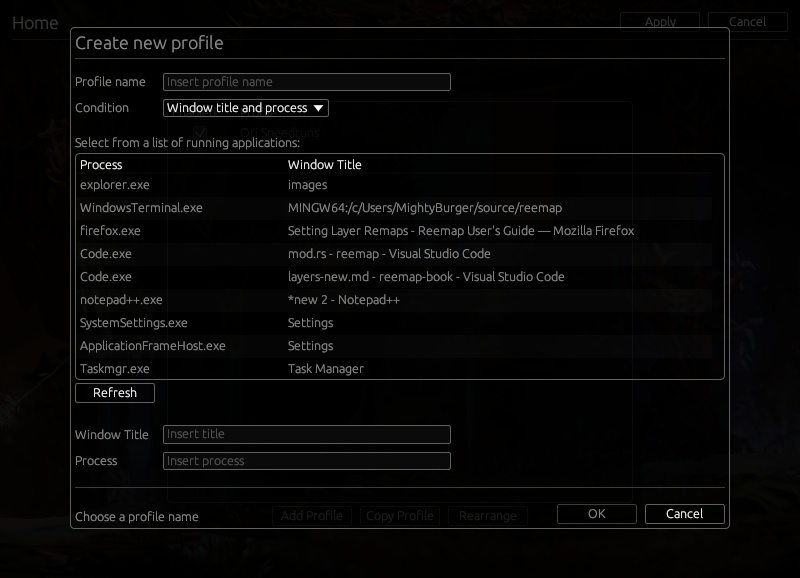
In this menu, you can name the profile, and you can choose when it is active.
Here are the available options.
Profile Name
This is the name you're giving this profile. This will show up in the profile list. It won't affect how this profile behaves in any way.
Condition
This option tells Reemap when to make this the active profile. When a profile is active, all of its remaps apply.
Here are the options:
| Condition | Explanation |
|---|---|
| Always Active | This profile is active regardless of what window is in focus. This may be useful for making a default profile. For this use case, put this profile in the bottom of the list of profiles so other profiles take priority. |
| Window title and process | Provide a window title and process name. The profile is active when the window in focus has this title and comes from this process. |
| Window title | Provide a window title; for example, Mozilla Firefox. The profile is active when the window in focus has this title. |
| Process | Provide a process name; for example, firefox.exe. The profile is active when the window in focus comes from this process. |
Window Title and Process
These options tell Reemap when to make this profile active. Refer to the Condition section for more information.
For example, these are the entries you should put for any of the Ori games:
| Game | Condition | Window title | Process |
|---|---|---|---|
| Ori and the Blind Forest | Window title and process | Ori And The Blind Forest | ori.exe |
| Ori and the Blind Forest: DE | Window title and process | Ori And The Blind Forest: Definitive Edition | oriDE.exe |
| Ori and the Will of the Wisps | Window title and process | OriAndTheWilloftheWisps | oriwotw.exe |
You usually won't have to type these in manually. Instead, click an entry in the list of running applications, and these fields will be filled in.