 Reemap
Creating a Layer
When you click Add Layer inside of a profile, this window appears:
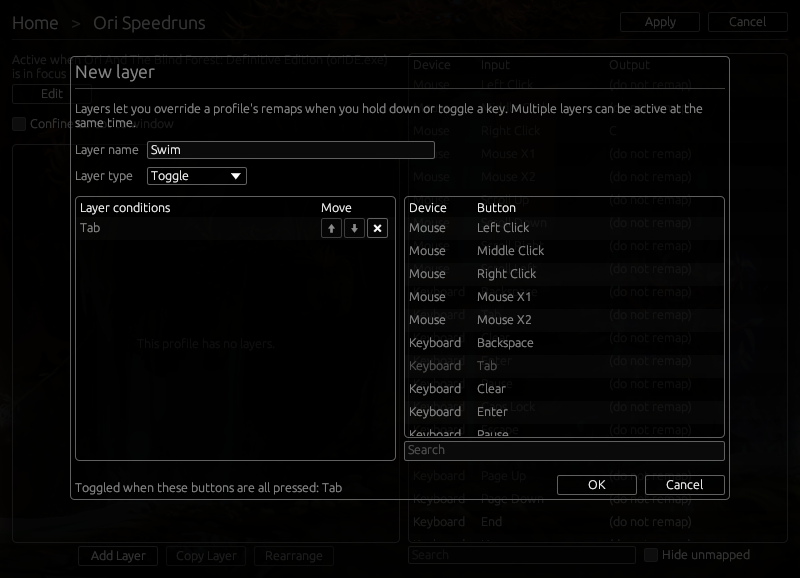
In this menu, you can name the layer, and you can choose when it is active.
Here are the available options.
Layer Name
This is the name you're giving this layer. This will show up in the layer list. It won't affect how this layer behaves in any way.
Layer Type
Reemap provides two options for when to enable this layer:
| Type | Explanation |
|---|---|
| Modifier | This layer is active only when every button in the condition list is held down. |
| Toggle | This layer will become active when everything in the condition list is pressed at the same time. Then, it will become inactive when everything in the list is pressed at the same time again. |
Condition List
The condition list is a list of buttons that need to be held down to activate this layer. When all the buttons are held down, Reemap will either activate the layer until one of the buttons are released, or it will toggle this layer, depending on whether this is a modifier layer or a toggle layer.
A list of available conditions is shown on the right. If you click on an item, it will add an entry to the condition list shown on the left.
You can add any keyboard or mouse button to the condition list. You cannot add scroll wheel inputs, however.
You can add as many buttons to this list as you want, though usually you only want one.
The order of entires in this list does not matter.
Modifier layer example
Say there is a modifier layer with Left Shift and Right Shift both in the condition list. This layer will be active when you press both left and right shift. It will become inactive once you release either shift key.
Toggle layer example
Say there is a toggle layer with Left Shift and Right Shift both in the condition list. This layer will become active when you press both left and right shift. It will stay active until you press left shift and right shift again.
Notes
It is okay to remap a key that's also on a layer's condition list. On new button presses, Reemap will check which layers to enable before applying the remap. That is, remaps in the profile and other layers do not affect when this layer is active.
If you only want to use a particular button as a layer condition and nothing else, it could be useful to suppress that input in the profile remaps. For example, you could make a layer activate when you hold Left Shift and also suppress it in the profile so the game never sees that Left Shift input.